Tradentry does not take any responsibility for the functionality of any third-party platform listed as compatible with the Tradentry evaluation or funded programs.
Tradentry does not provide a free license to third-party platforms unless otherwise stated.
Tradentry customer support cannot provide technical assistance for Quantower or other third-party platforms. For platform-related issues, please contact the platform provider directly.
🔗 Connect Your Tradentry Account to Quantower
Before connecting your Tradentry Rithmic credentials to Quantower, make sure you have accepted the required Rithmic agreements and installed Quantower on your device.
1 Accept the Rithmic Agreements
During your first login, you may see a Rithmic agreement pop-up. You must accept both Rithmic agreements by clicking “I Accept”. Otherwise, the platform connection may not work.
You may also complete the agreement process manually with your Rithmic credentials here: rithmic.com/rag_paper.html
Please choose non-professional data when completing the agreements if this matches your status. In that case, no additional professional data fee should be charged.
Important: If you selected professional status by mistake, please contact Tradentry support to request recertification.
2 Download & Install Quantower
Download and install Quantower from the official Quantower website: quantower.com/download
3 Log in to Quantower
Open Quantower and log in to the Quantower platform using your Quantower login credentials.
4 Open the Rithmic Connection Window
Once Quantower is open, look at the connection toolbar at the top of the screen.

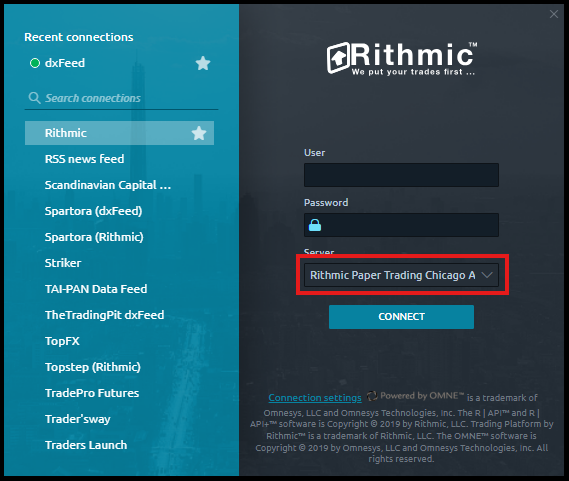
- Click on “Rithmic”.
- A connection window will pop up.
5 Select the Correct Server
In the Rithmic connection window:
- Enter your Rithmic username and Rithmic password.
- Locate the Server dropdown menu.
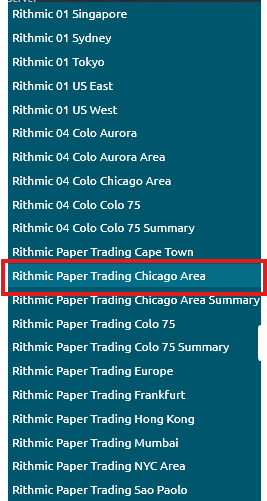
- Select the exact server below.
Important: You must select exactly
Rithmic Paper Trading Chicago Area. Do not select a different location.
6 Connect
Click the 🔗 CONNECT button to establish the connection to your Tradentry account.