Tradentry does not take any responsibility for the functionality of any third-party platform listed as compatible with the Tradentry evaluation or funded programs.
Tradentry does not provide a free license to third-party platforms unless otherwise stated.
Tradentry customer support cannot provide technical assistance for ATAS or other third-party platforms. For platform-related issues, please contact the platform provider directly.
🔗 Connect Your Tradentry Account to ATAS
Before connecting your Tradentry Rithmic credentials to ATAS Order Flow Trading, make sure you have accepted the required Rithmic agreements and installed ATAS on your device.
1 Accept the Rithmic Agreements
Before logging in, you must accept the Rithmic agreements through the following link: rithmic.com/rag_paper.html
Make sure to declare yourself as a non-professional data user when filling out the Rithmic forms.
Warning: If you declare yourself as a professional, additional data fees may apply and your connection may be restricted.
2 Download ATAS
Download the latest version of ATAS from the official website: atas.net/atas-download
3 Open ATAS and Log In
Open ATAS and enter your ATAS login and password.
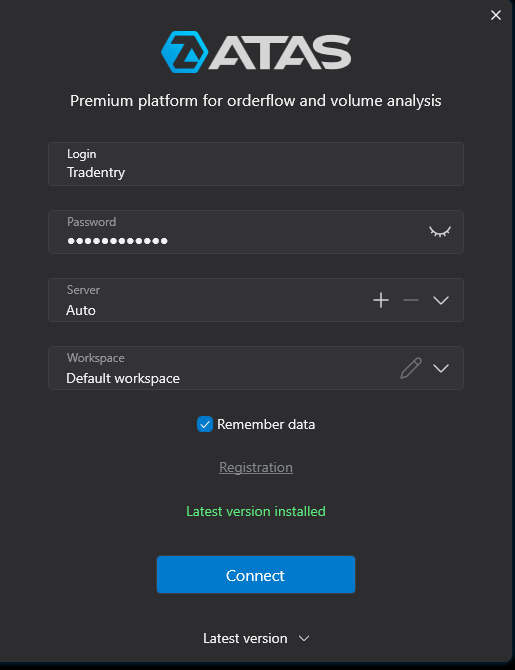
4 Connect Your Rithmic DataFeed to ATAS
Follow the procedure below to link the Rithmic DataFeed inside ATAS.

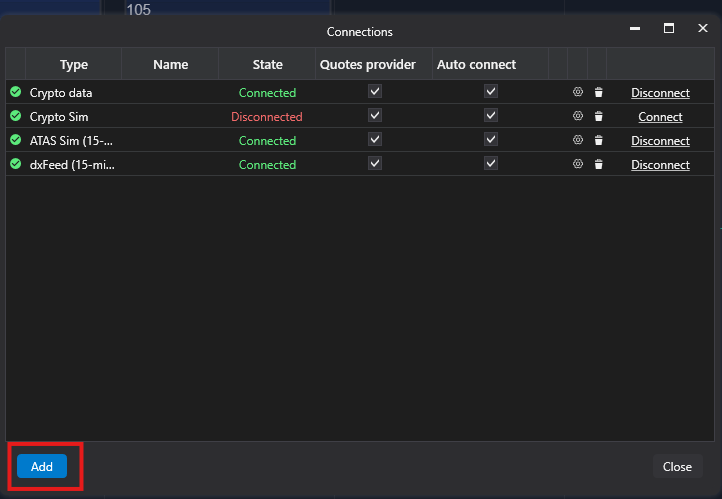
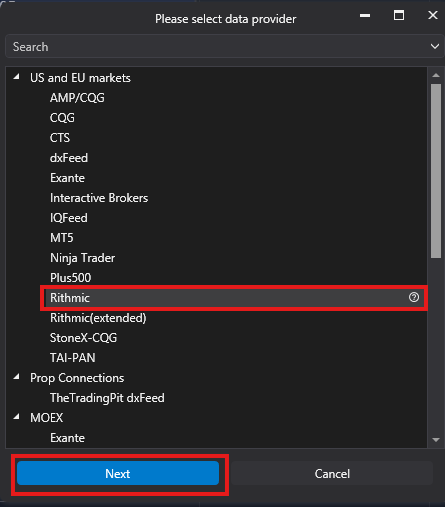
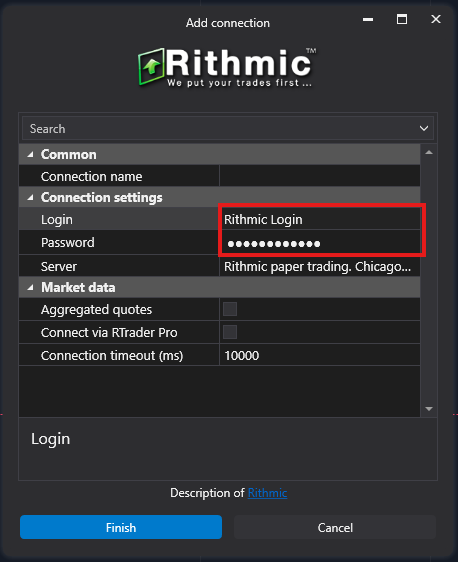
5 Select the Correct Server
In the server selection screen:
- Locate the Server dropdown menu.
- Select the exact server below.
Important: You must select exactly
Rithmic Paper Trading Chicago Area. Do not select a different location.
Then click “Finish.”
6 Connect
Click the 🔗 CONNECT button to establish the connection with Rithmic.
7 Select Your Tradentry Account
Once connected, open the Accounts tab and select your Tradentry account to start trading.